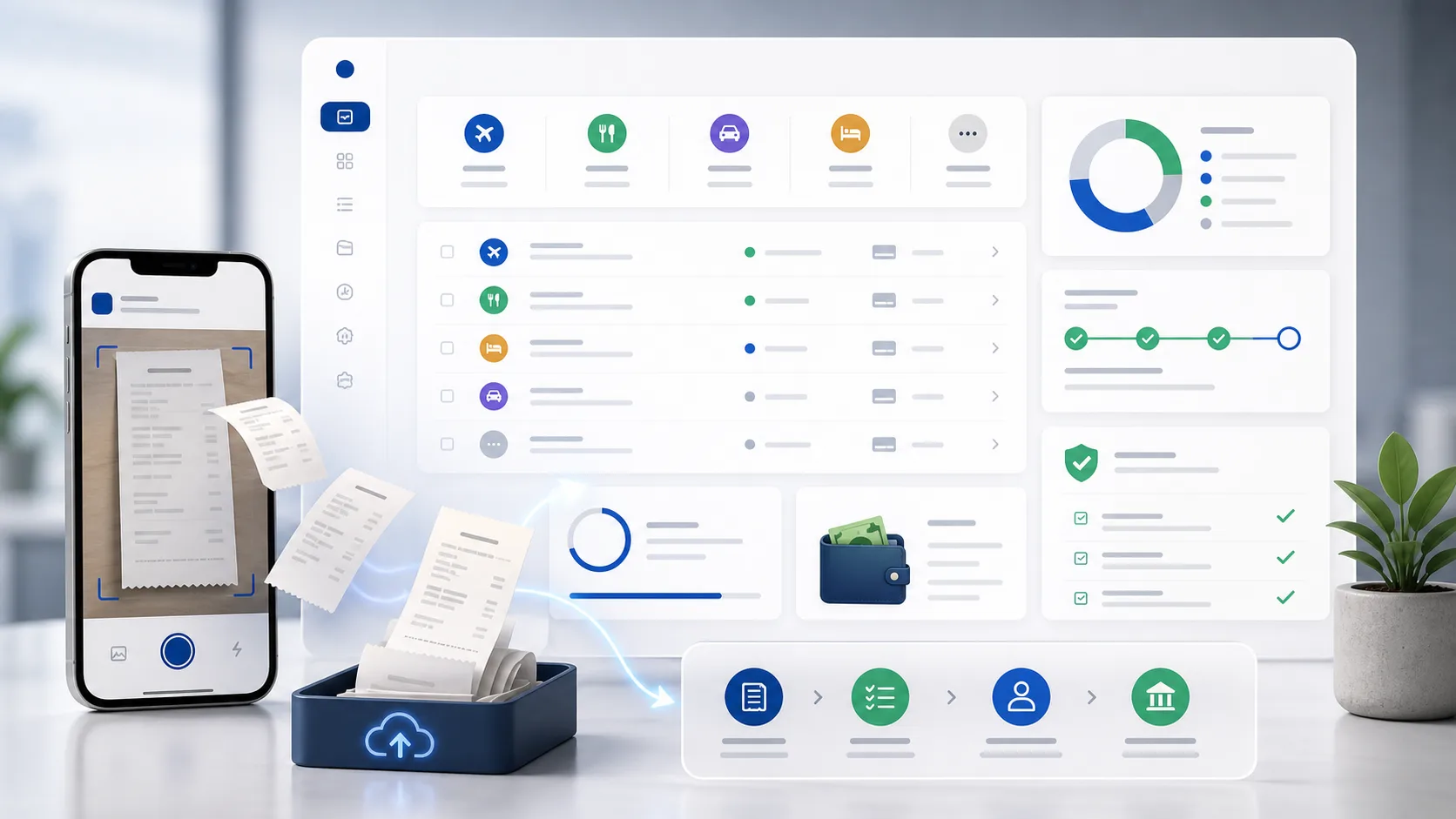
Learn how to get the most out of Kkgevara
Step-by-step guides that help you automate expense management, process invoices, configure integrations, and use AI-powered financial automation more effectively — whether you're a new user or an experienced administrator.

Getting started
Your setup journey
Learn the basics and set up your Kkgevara workspace — from creating your account to processing your first invoice and expense.
- Step 01Step 01
Create your Kkgevara account
- Step 02Step 02
Set up your organization
- Step 03Step 03
Invite team members
- Step 04Step 04
Configure workspace settings
- Step 05Step 05
Upload your first invoice
- Step 06Step 06
Submit your first expense report
Watch & learn
Video tutorials
Guided walkthroughs of key platform features.


AI invoice processing

Expense management

Approval workflows

API integration

Analytics dashboard
Browse tutorials
Explore guides by category
Step-by-step tutorials grouped by topic — pick a category and dive right in.
AI Invoice Processing
6 tutorials
Master AI-powered invoice automation.
- 01Upload and process an invoice
- 02Process multiple invoices in bulk
- 03Review extracted invoice data
- 04Validate invoice information
- 05Detect duplicate invoices
- 06Export invoice records
AI Expense Management
6 tutorials
Learn how to simplify expense reporting and reimbursements.
- 01Submit an expense
- 02Upload receipts
- 03Categorize expenses
- 04Create expense reports
- 05Track reimbursements
- 06Review expense history
Approval Workflows
6 tutorials
Automate invoice and expense approvals.
- 01Create an approval workflow
- 02Configure approval rules
- 03Assign managers and approvers
- 04Approve or reject requests
- 05Track approval status
- 06Manage workflow notifications
Integrations
6 tutorials
Connect Kkgevara with your existing business systems.
- 01Connect QuickBooks
- 02Connect Zoho Books
- 03Connect Tally
- 04Connect Xero
- 05Configure ERP integrations
- 06Set up cloud storage
API Tutorials
6 tutorials
Build custom applications with the Kkgevara API.
- 01Generate API keys
- 02Authenticate API requests
- 03Upload documents using the API
- 04Process invoices with the OCR API
- 05Retrieve expense records
- 06Configure webhooks
Analytics & Reporting
6 tutorials
Generate reports and monitor business spending.
- 01Create expense reports
- 02Generate invoice reports
- 03Analyze spending trends
- 04Export financial reports
- 05Build custom dashboards
- 06Monitor approval performance
Security & user management
Keep your workspace protected
Protect your workspace and manage user access.

- Enable multi-factor authentication
- Create user roles
- Manage permissions
- Review audit logs
- Secure API access
- Update security settings

Best practices
Work smarter with automation
Learn recommended workflows for better financial automation.
- Faster processing
- Higher accuracy
- Better compliance
- 01
Improve OCR accuracy
01 - 02
Organize financial documents
02 - 03
Reduce processing time
03 - 04
Build efficient approval workflows
04 - 05
Optimize expense policies
05 - 06
Keep financial data secure
06
FAQ
Common questions
Quick answers about our tutorials and learning resources.
Still have questions?
Our team is happy to help.
Keep going
Continue learning
Explore additional resources to expand your knowledge of the platform.
- DocumentationGuides, references, and setup instructions.
- API ReferenceEndpoints, examples, and SDKs for developers.
- Help CenterAnswers and support for everyday tasks.
- BlogProduct updates, tips, and announcements.
- FAQQuick answers to frequent questions.
- Contact SupportReach our team for personalized help.
New tutorials
Ready to start learning?
Follow step-by-step guides to automate invoices, expenses, and approvals — and get the most out of Kkgevara.
- Step-by-step guides
- Free to access